Zoom
Capture and analyze Zoom calls automatically.
The Zoom integration is how most teams get calls into Salesy. Once it's connected, every Zoom meeting your account hosts can be transcribed, scored, and surfaced in your Salesy dashboard automatically — you don't have to upload anything by hand.
This guide walks through which Zoom plan you need, how to install the Salesy app from the Zoom Marketplace, and the exact settings to flip on inside Zoom so transcripts actually reach us.
What you need before you start
Salesy needs Zoom to generate cloud recordings and transcripts — those are the artifacts we ingest and analyze. That requires a paid Zoom plan:
- Zoom Pro (or higher). Pro includes cloud recording and cloud transcription, which are what trigger the events Salesy listens for. With Pro, every recorded meeting flows into Salesy for full analysis.
- A paid Zoom Phone license (optional). If you take sales calls over Zoom Phone, any paid Phone tier — Metered, Unlimited Regional, or Pro Global Select — enables call recording and transcription. Salesy ingests phone transcripts the same way it ingests meeting transcripts. See the Zoom Phone settings section below for the exact policy toggles.
Step 1: Install Salesy from the Zoom Marketplace
Head to the Zoom Marketplace, search for Salesy, and click Add. Zoom will show you the permissions Salesy is requesting — review them and approve the install. This grants Salesy permission to receive your meeting events and fetch transcripts on your behalf.
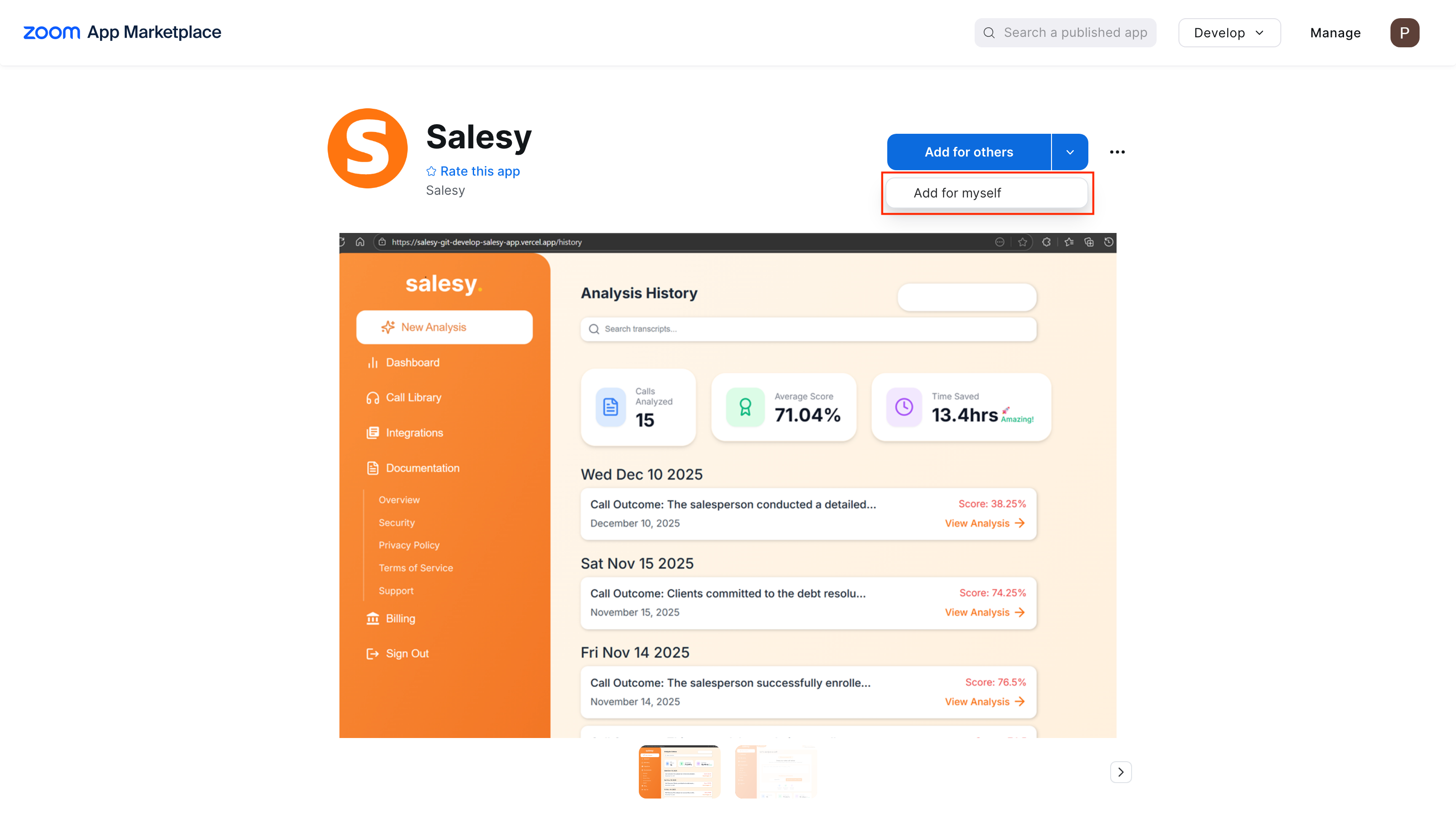
Salesy on the Zoom Marketplace with the Add button highlighted
zoom-marketplace-install
Step 2: Connect Zoom from your Salesy dashboard
Open Salesy, go to Automations, find the Zoom card, and click Connect. You'll be sent through a quick Zoom OAuth flow to authorize the connection. When it finishes you'll land back on the Zoom automation page with a Connected badge.
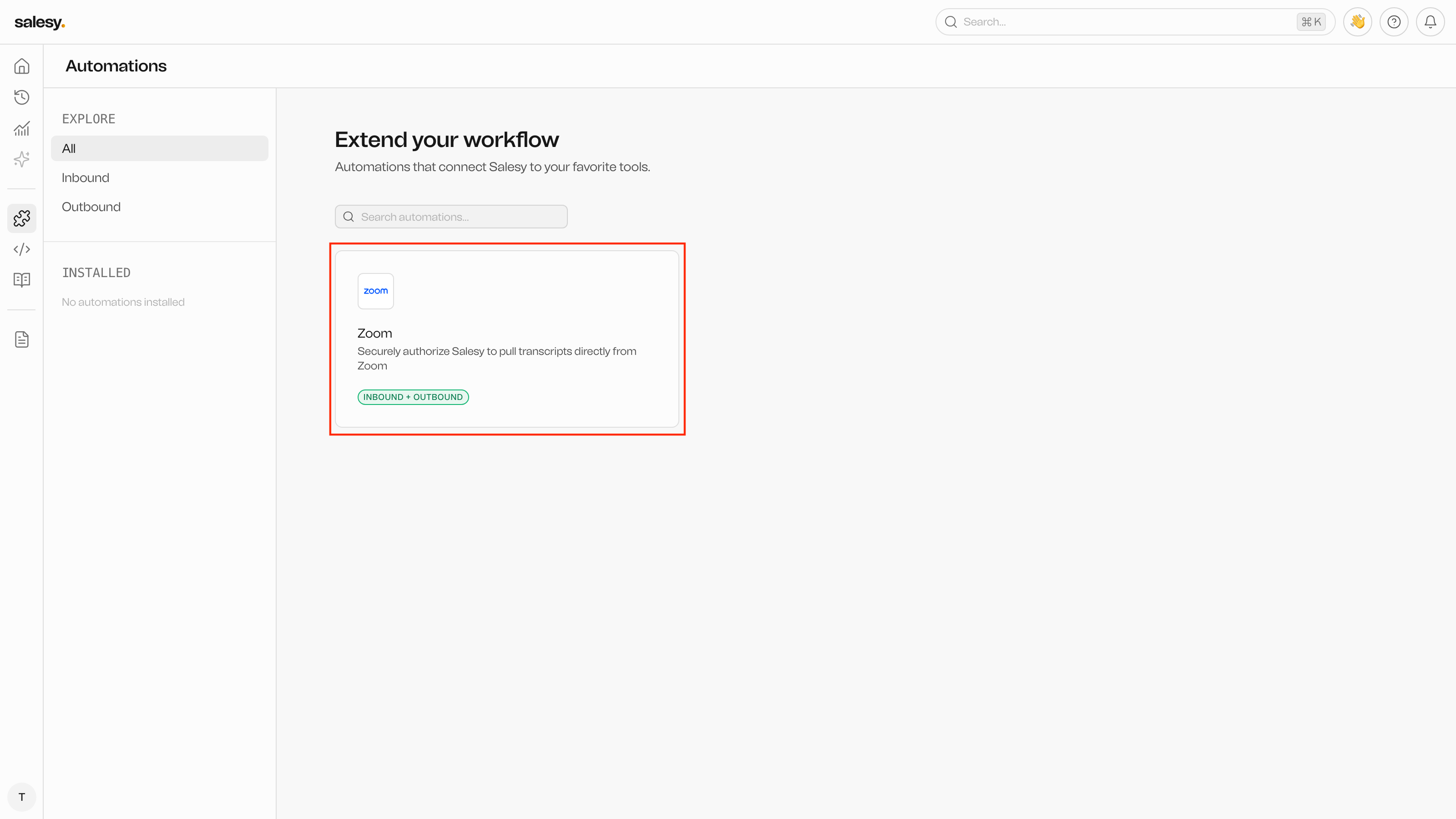
Salesy Automations page with the Zoom card and a Connect button
zoom-salesy-connect
Step 3: Turn on the right Zoom settings
The integration only sees what your Zoom account actually records and transcribes. Open Zoom → Account Settings → Recording & Transcript in a browser and flip on the settings below.
Under Meeting → In Meeting (Advanced)
- Enable Meeting transcript.
- Check Automatically generate transcripts for and choose All meetings. This keeps transcript generation on by default instead of limiting it to meetings that also have meeting summary enabled.
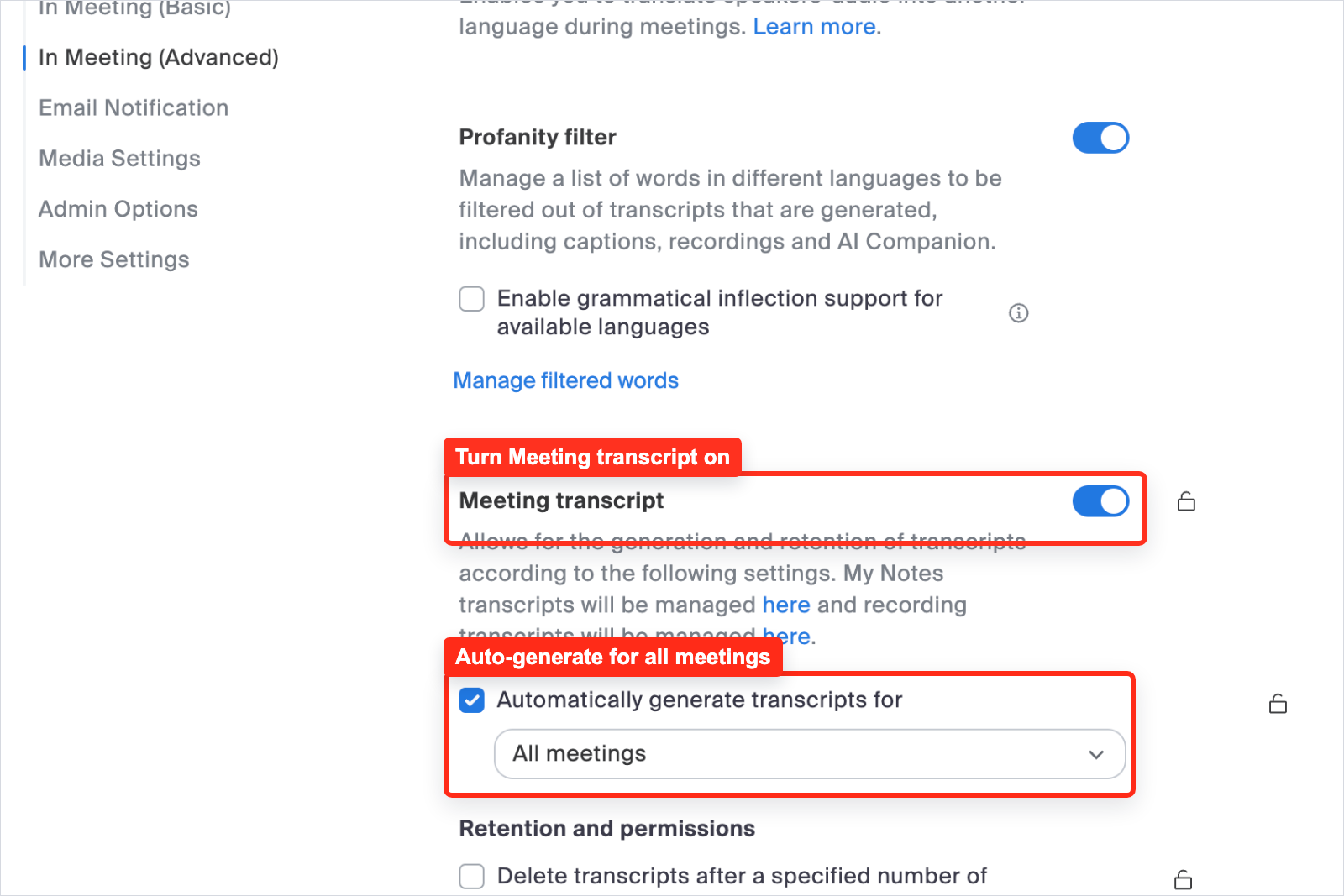
Zoom Meeting settings with Meeting transcript enabled and automatic transcript generation set to all meetings
zoom-in-meeting-advanced
Under Recording & Transcript → General → Cloud recording
- Enable Cloud recording.
- Make sure Zoom Meeting is checked.
- In Cloud recording setting, keep Record active speaker with shared screen checked and enable Record audio-only files. The default Record one audio file for all participants option is fine.
Under Advanced cloud recording settings
- Enable Add a timestamp to the recording.
- Enable Create audio transcript. Without this Zoom won't generate the transcript file Salesy ingests.
- Optional but recommended: enable Save closed caption as a VTT file as a fallback transcript artifact.
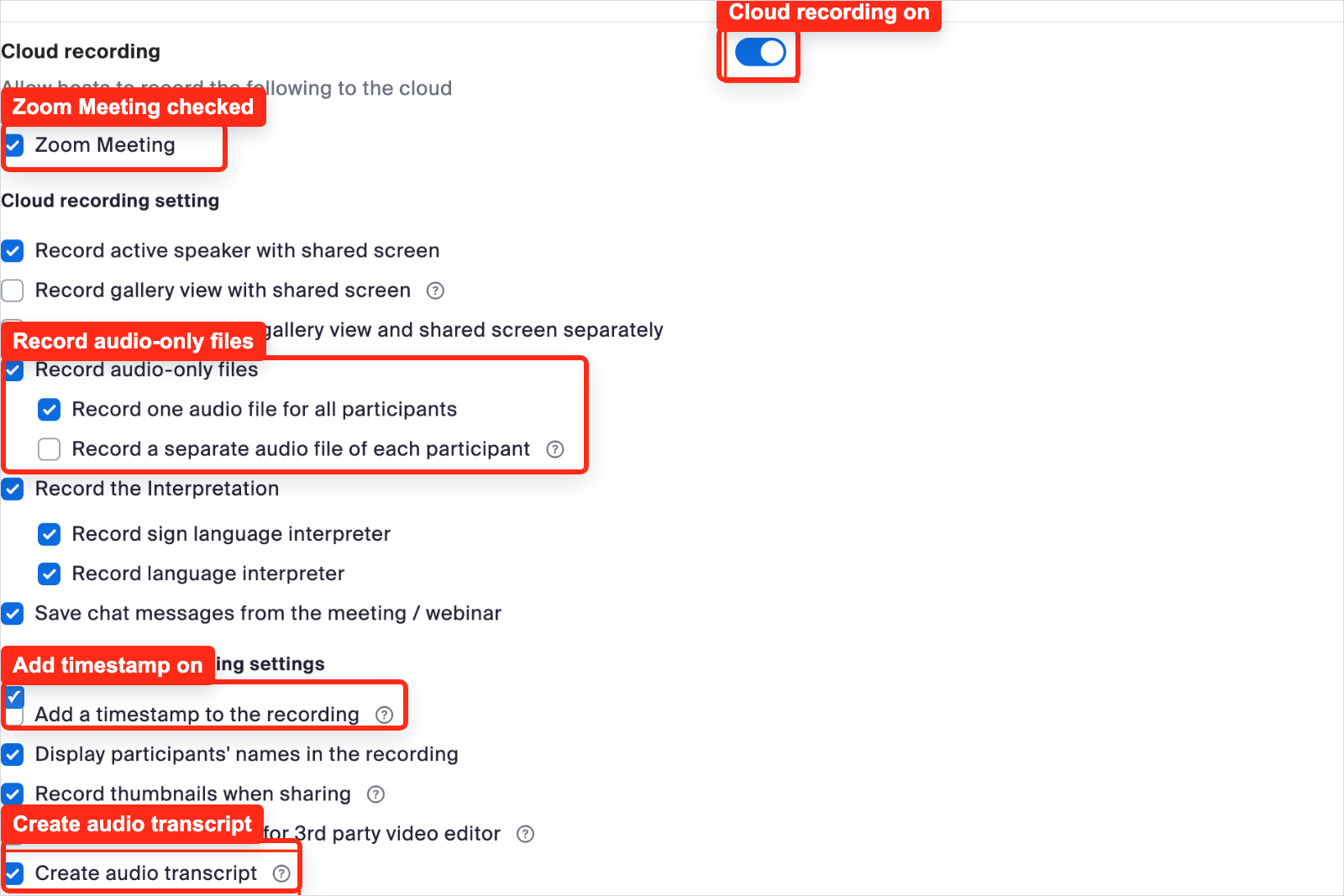
Zoom Recording and Transcript cloud recording settings with Zoom Meeting, audio-only files, Add a timestamp, and Create audio transcript highlighted
zoom-advanced-cloud-recording
Automatic recording (recommended)
- Enable Automatic recording. If Zoom asks where to save the recording, choose Record in the cloud. This guarantees recordings happen even when a host forgets to hit Record — the single most common reason calls don't appear in Salesy.
- If the toggle is locked, ask your Zoom admin to unlock account-level recording settings or review the Revenue Accelerator note below.
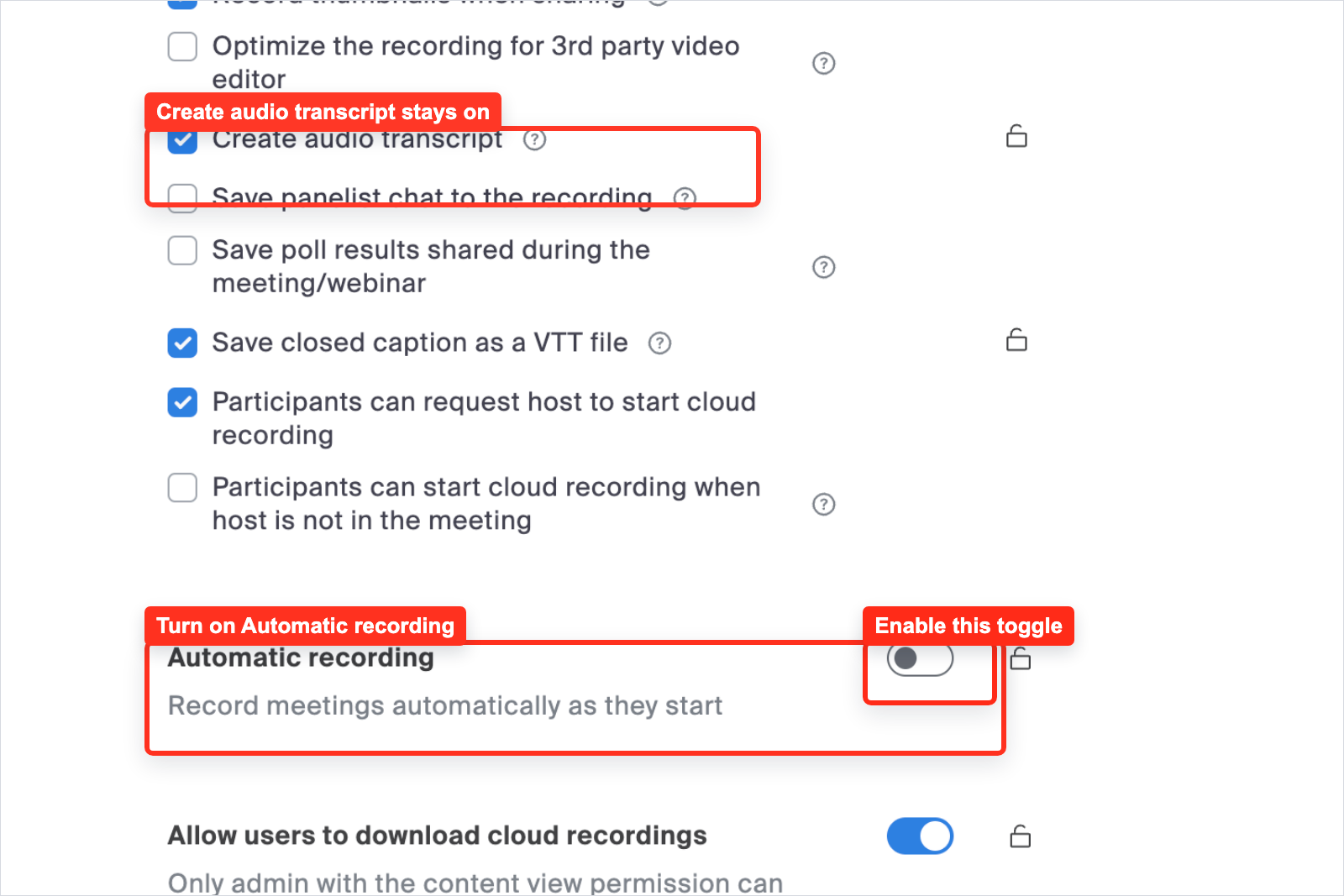
Zoom Recording and Transcript settings with Automatic recording highlighted
zoom-automatic-recording
If your account uses Zoom Revenue Accelerator
Zoom Revenue Accelerator (ZRA) is a separate paid add-on for sales-conversation analysis. If anyone on your Zoom account is ZRA-licensed, it can change how cloud recording behaves for the rest of your account — and that affects what reaches Salesy.
- Locked toggles. ZRA introduces its own "Automatic recording for scheduled meetings with external participants" setting under Account Settings → Revenue Accelerator. Admins can lock it at the account level, which causes the standard Automatic recording toggle (the one we recommend above) to appear grayed out for users. If you can't turn on automatic cloud recording, that's almost certainly why.
- ZRA may own the recording pipeline. When ZRA-licensed users host external meetings, Zoom routes those recordings through ZRA's analysis pipeline. In our testing, recordings handled by ZRA don't reliably deliver the standard transcript-completed webhook to third-party apps like Salesy — only the AI Companion transcript event (which is a separate pipeline) comes through.
What to do: If you want every meeting analyzed by Salesy, ask your Zoom admin to either (a) unlock the automatic-recording setting in the Revenue Accelerator tab so the standard cloud-recording toggles can be enabled per user, or (b) accept that ZRA-routed meetings will reach Salesy via AI Companion transcripts only. We're actively improving coverage of the ZRA path — if this is blocking you, email support@salesy.ai.
Zoom Phone settings
If your team takes sales calls over Zoom Phone, Salesy can ingest those calls the same way it ingests meeting recordings — once a phone call is recorded and Zoom finishes transcribing it, the transcript flows in automatically. Zoom Phone settings live in a completely different part of the admin console from regular Meeting settings, so it's worth walking through them explicitly.
License requirements
- A Zoom Phone license (Metered, Unlimited Regional, or Pro Global Select) assigned to every user whose calls you want analyzed. Phone numbers and call recording require a paid Phone license — the trial / free Phone tier won't produce transcripts.
- For AI-generated post-call summaries on top of the transcript, the account also needs AI Companion enabled for Zoom Phone. This is optional — Salesy works from the raw transcript and doesn't require AI Companion for Phone.
Turn on automatic call recording
Recording is the prerequisite for transcripts — if a call isn't recorded, Zoom won't transcribe it and Salesy will never see it. Your Zoom Phone admin enables this from a phone policy, which can apply at the account, site, group, or individual user level.
- Sign in to the Zoom web portal as an admin and open the Zoom Phone policy you want Salesy to cover. Use Account Management → Account Settings → Zoom Phone for the account-wide default, or Phone System Management → Users & Rooms to override per site, group, or user.
- Under Call Handling, find Automatic Call Recording and toggle it on.
- Set Recording calls of to Inbound and Outbound for the broadest coverage. Pick whether to record from connection or from ring, and choose the announcement / consent prompt that fits your jurisdiction.
- (Optional) Lock the setting at the account or site level if you want it enforced and can't be overridden by individual users.
Ad Hoc Call Recording (the same panel, separate toggle) lets users start and stop recording mid-call instead of recording everything. Either works for Salesy — as long as the call ends up recorded, the transcript pipeline kicks in.
Turn on call recording transcription
Recording on its own isn't enough — Zoom only transcribes phone recordings when the admin policy allows it. In the same Automatic Call Recording panel:
- Under Other settings, enable Allow call recording transcription. This is what drives the phone-recording-transcript-completed event that Salesy listens for.
- (Optional but recommended) Enable Call Live Transcription too if you want users to see real-time captions during calls. Salesy doesn't depend on this, but it's a nicer experience for the people on the phone.
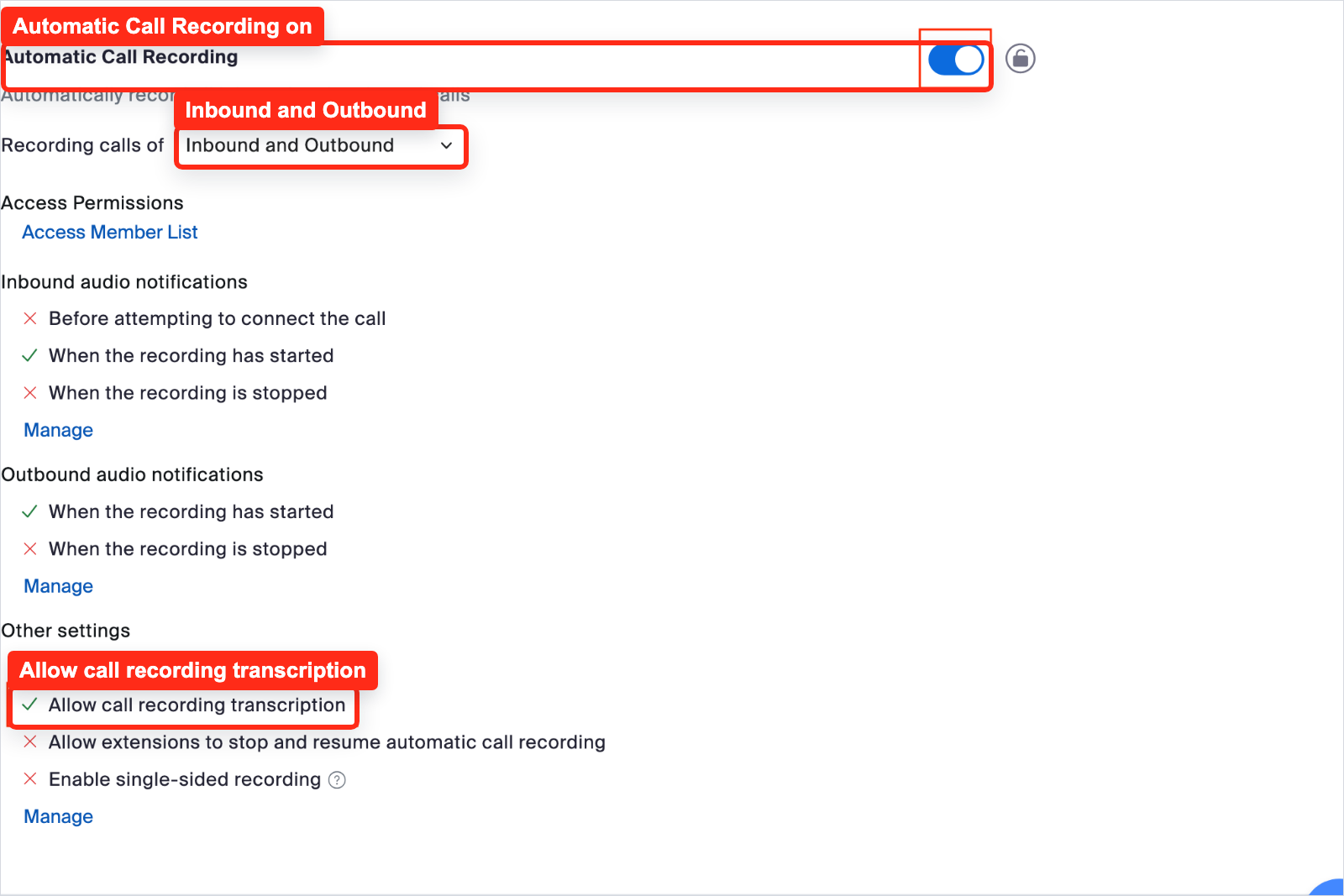
Zoom Phone admin policy with Automatic Call Recording, Inbound and Outbound recording, and Allow call recording transcription highlighted
zoom-phone-policy
Reconnect after enabling Phone
If you connected Zoom to Salesy before you turned on Zoom Phone (or before you added the Phone license to your account), disconnect and reconnect Zoom in Automations → Zoom. The Phone-related scopes only attach on a fresh OAuth grant, so existing connections won't receive Phone transcript events until you re-authorize.
How recordings flow into Salesy
Once everything is connected and your Zoom settings are right, the integration is hands-off. Here's what happens after a call ends:
- Zoom finishes processing the cloud recording and generates the transcript (usually a few minutes for short calls, longer for hour-plus meetings).
- Zoom sends Salesy a transcript-completed event for the meeting.
- Salesy fetches the transcript, runs your active analyses against it, and the call shows up in your dashboard under Call history.
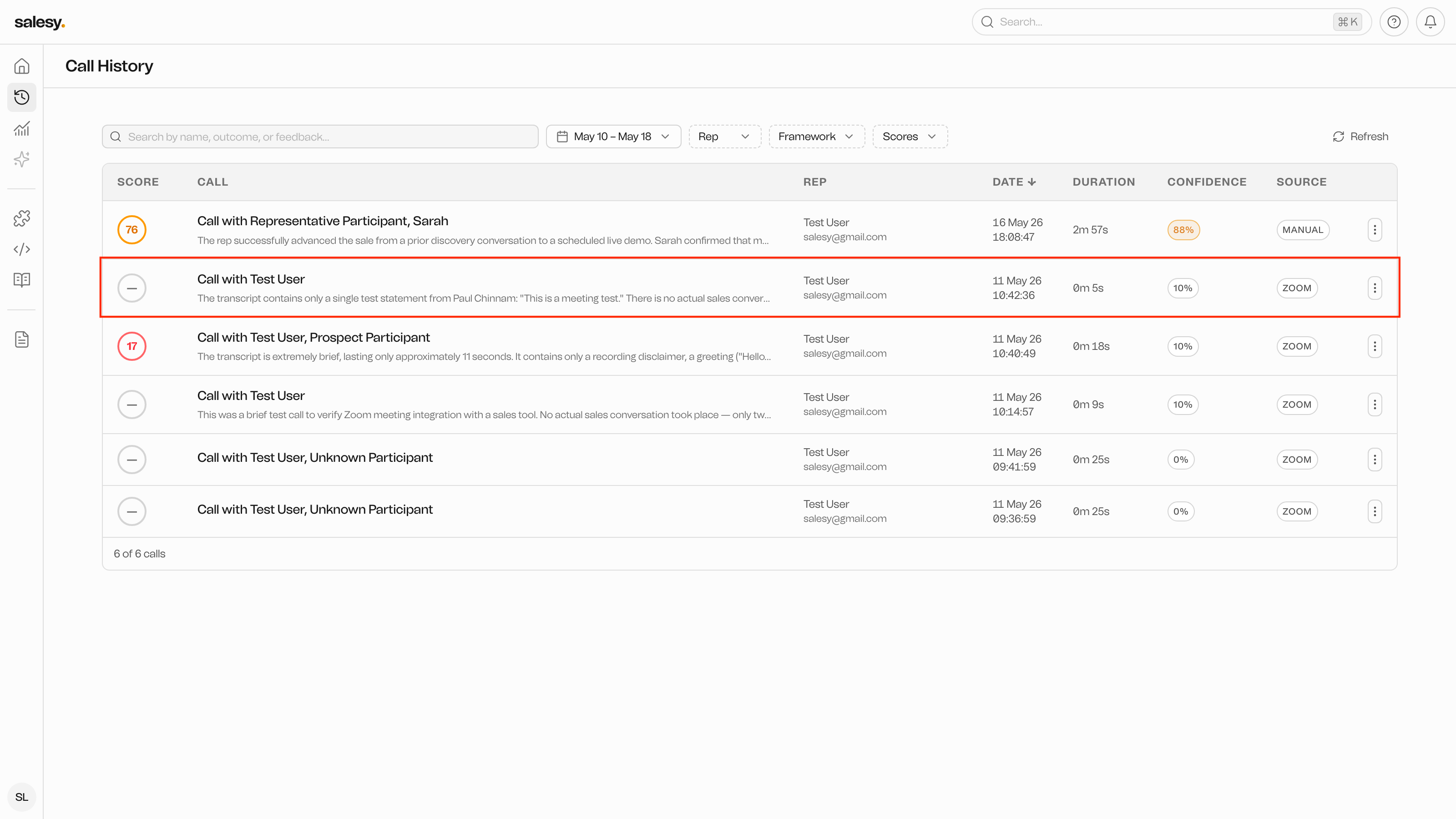
A processed Zoom call shown on the Salesy call detail page
zoom-call-detail
Troubleshooting
I finished a call but it didn't show up in Salesy. First, confirm the meeting was cloud-recorded — local recordings stay on the host's machine and Zoom never sends them to us. Then confirm Create audio transcript is on; without it Zoom doesn't produce the transcript event Salesy listens for. Transcripts for long calls can take 15–30 minutes to finish processing on Zoom's side.
I see "Connect Zoom" in the dashboard even though I just installed the Marketplace app. The Marketplace install and the Salesy-side connect are two separate steps. After installing, go back to Salesy → Automations → Zoom and click Connect to finish the OAuth handshake.
My Salesy email is different from my Zoom email. The two need to match. Either change your Salesy account email to match Zoom, or sign up for a new Salesy workspace using your Zoom email.
We just enabled new Zoom features (AI Companion, etc.) and our existing connection stopped getting transcripts. New Zoom scopes don't apply retroactively to existing OAuth grants. Disconnect Zoom in Automations → Zoom and reconnect to re-authorize with the latest scopes.
Disconnecting
You can revoke Salesy's access to your Zoom account at any time, from either side:
- In Salesy: Automations → Zoom → Disconnect.
- In Zoom: Marketplace → Manage → Added apps → Salesy → Remove.
After disconnecting, Zoom stops sending us events for your account and we retain only the calls already ingested. See the data protection page for retention details.